
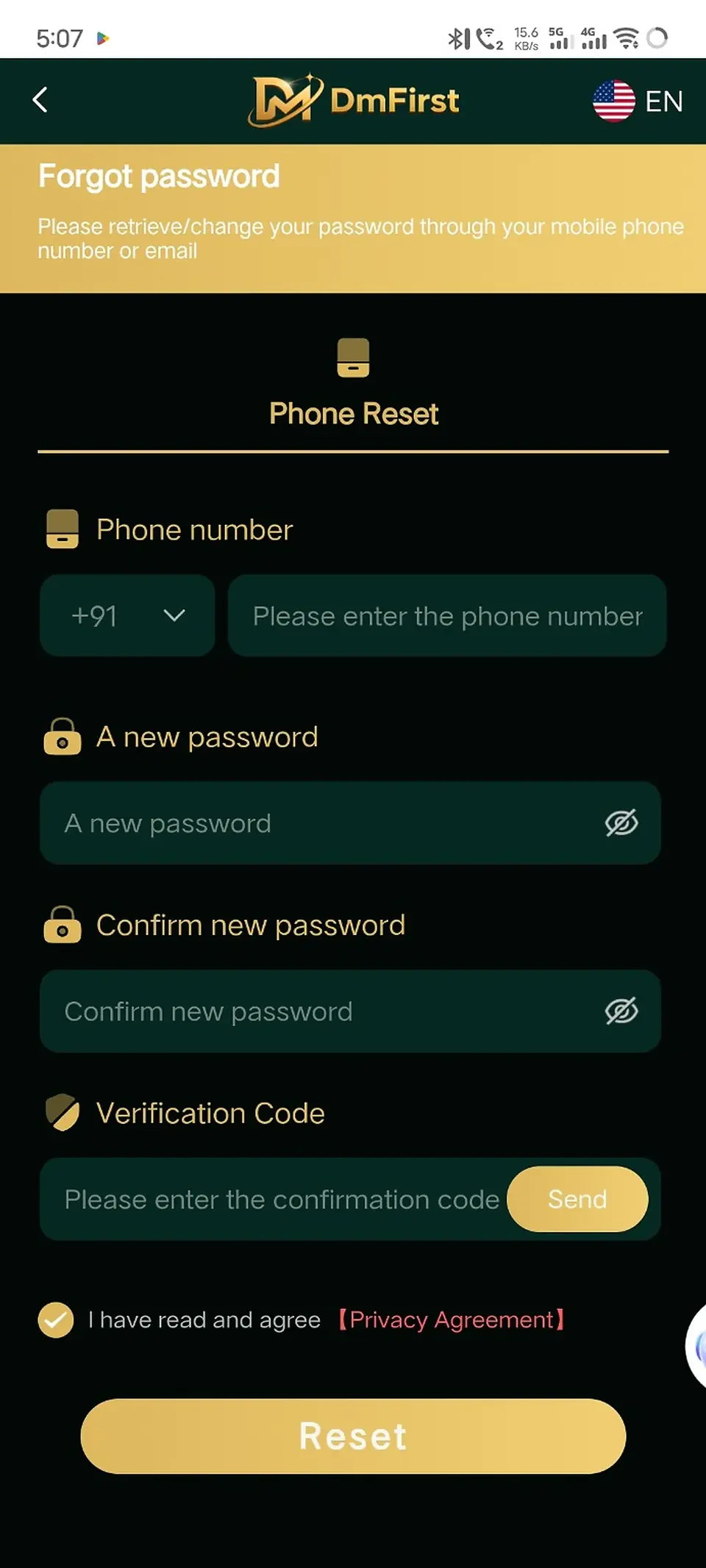
Step-by-step instructions
1
Select Forgot password from the login screenOpen the recovery screen from the DmFirst login page.
2
Choose the available reset methodSelect phone reset or email recovery if the platform offers both options.
3
Enter the registered phone number or emailUse the same contact information linked to the account.
4
Create a new passwordEnter a new strong password, then repeat it in the confirmation field.
5
Request the verification codeUse Send and enter the code delivered to your registered contact method.
6
Review the agreement and resetSubmit the reset request. Then return to the login page and use the new password.
Never share a verification code. Official support should not need your OTP or password.
Screens and labels can change when the external platform updates. Follow the wording currently shown on your device.